





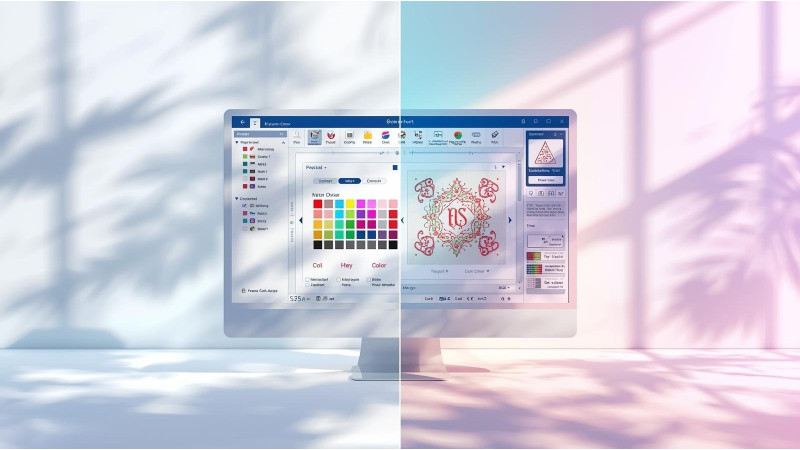
How to Fix Wrong Thread Colors After Importing Designs
One of the most confusing embroidery file problems is when a perfectly digitized design shows completely different or incorrect thread colors after being imported into your embroidery machine or software. This issue happens across PES, DST, EXP, JEF and other formats, and is especially common with Brother, Janome, Bernina and multi-brand software.
The problem is not always with the design itself. It usually happens because different machines and programs use different color palettes, thread charts and interpretation rules. In this guide, you will learn why this happens and how to fix it quickly and permanently.
Why Imported Designs Show Wrong Colors
Different embroidery formats store color information differently. Some formats store full color data, while others store only basic palette numbers. When a design is opened on a new system, the machine may interpret those colors differently, causing unexpected shades.
- Your machine is using a different thread brand than the file was digitized in.
- The file format does not store complete color data, such as DST.
- The software auto-converts colors to a default palette.
- The exporting software used a non-standard palette.
- Color-stop commands were lost during editing or resizing.
A complete explanation of why color issues occur can be found here: Mr X Stitch – Why Are Colors Wrong in Machine Embroidery?
Common Formats That Cause Color Problems
Some formats are more likely to show wrong colors than others:
- DST: Stores almost no color information. Machines assign default colors automatically.
- PES: Stores full palette data, but different versions interpret it differently.
- EXP: Minimal color storage, similar to DST.
- VP3 / JEF: Good palette storage, but still varies by machine model.
Brother has an official guide for dealing with color conversion issues: Brother Support – Thread Color Issues

How to Fix Wrong Thread Colors After Import
1. Change the thread chart to match your machine
Most digitizing software allows you to switch between chart types such as Brother, Madeira, Isacord, Robison-Anton and others. Always select the same chart your embroidery machine uses.
2. Reassign the colors manually in your software
If the imported colors look incorrect, you can manually select the right shades from your software’s thread library. This ensures accurate output during stitching.
3. Avoid formats that do not store full color data
If possible, avoid DST or EXP for detailed color work. Instead, request PES, JEF or VP3 versions from your digitizing service.
4. Update or repair your software color settings
Outdated software may load colors incorrectly. Resetting or updating color libraries often solves this.
5. Re-export the design with the correct palette
If you have access to the digitizing file, export it again using your correct machine brand palette. This resets the color data.
6. Check if color-stop commands are intact
Sometimes resizing or editing removes color-change points, causing multiple colors to merge into one. Open the design in software to verify the sequence.
Helpful Video Tutorials
- Fixing Wrong Colors in Embroidery Software
- Why Colors Look Wrong After Importing Embroidery Designs
- Understanding Machine Color Palettes
- Where Did My Color Changes Go?
- How to Fix Color Mismatch in Embroidery
- Reassigning Thread Colors Step-by-Step
How to Prevent Wrong Colors in the Future
- Always download embroidery files from trusted sources like EmbDesignTube.
- Use the format recommended for your machine.
- Select the same thread chart as your machine uses.
- Test the design on screen before starting embroidery.
- Avoid using outdated conversion tools.
Conclusion
Wrong thread colors after importing embroidery files are usually caused by palette mismatches, incomplete color data, or software interpretation differences. By using the correct thread charts, adjusting the palette in your software, and selecting the right file format, you can ensure accurate and consistent colors every time you stitch.
For well-digitized embroidery designs with correct thread palettes, visit EmbDesignTube.com.
Leave a comment