





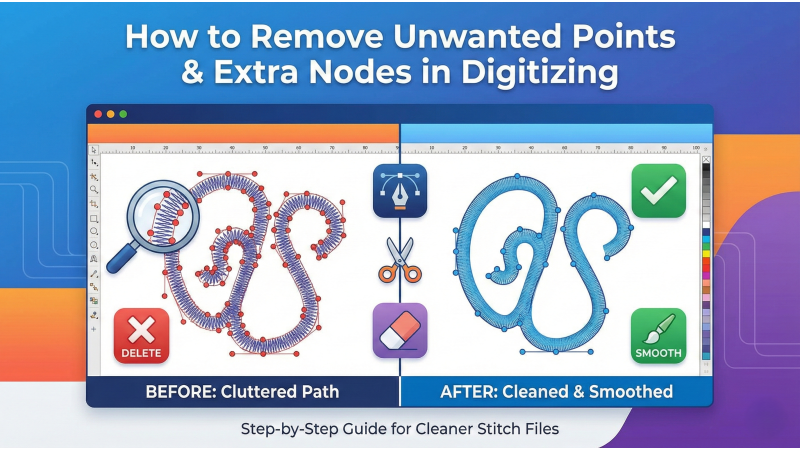
How to Remove Unwanted Points and Extra Nodes in Digitizing
Designs overloaded with stray points behave like a nervous animal at the machine — jittery paths, sudden direction changes, and stitches piling where they shouldn’t. Extra nodes don’t just clutter your screen; they slow down your machine, distort outlines, and inflate stitch count. A little cleanup turns chaos into smooth embroidery harmony.
Below is a deeper, more craft-sharp guide, now woven together with essential resources such as Brother’s official point-editing documentation, Embroidery Legacy’s node control tutorial, Hatch’s curve-smoothing guide, Wilcom’s vector smoothing reference, and helpful demonstrations from video 1, video 2, video 3, and video 4.
What Are Nodes in Digitizing?
Nodes are the anchors of your embroidery shapes — the tiny control points defining every bend and pivot. When artwork is imported, auto-digitized, or traced from a raster image, the software often scatters far more nodes than needed. These cluttered points tug the stitch path around, leaving telltale wobbling curves and lumpy borders.
Too many nodes tend to:
- Carve jagged edges into what should be smooth curves
- Add unnecessary needle penetrations
- Increase the risk of thread breaks
- Boost stitch count for no artistic benefit
- Distort outlines on fabrics with stretch

Why Extra Points Cause Problems
Every point is a micro-decision your machine must follow. When the design is overpopulated with hundreds of redundant nodes, the stitch path becomes erratic. Your machine hesitates, changes angle too frequently, and digs into the fabric more than necessary.
This leads to:
- Uneven satin borders
- Misaligned stitch angles
- Puckering on stabilizer-sensitive fabrics
- Layering issues in fills
By trimming the point clutter, your design glides along a clean, predictable path — like switching from a gravel road to a newly laid highway.
How to Identify Unwanted Nodes
Open the shape in point-edit mode and zoom in until the curves feel almost architectural. Here’s what usually signals trouble:
- Curves broken into tiny linear fragments
- Clusters of overlapping nodes with no visual purpose
- Auto-digitized areas with extremely high point counts
- Imported vector shapes (SVG/AI) with excessive node pollution
If the outline looks like someone sprinkled confetti along the edges, cleanup is not optional — it’s essential.
How to Remove Unnecessary Points
1. Use Your Software’s Built-In “Simplify” or “Reduce Points” Tool
Different programs approach point cleanup differently. Tools like those documented in Brother’s node-editing reference automatically remove redundant nodes while preserving shape integrity. Use conservative reductions so curves stay faithful.
2. Manually Delete Points for Precision
Manual editing gives the highest level of artistic control. Delete a point and check whether the shape still behaves. If the curve collapses, undo and leave it in place. This method shines in lettering cleanup, small logos, or delicate icon outlines.
3. Convert Linear Point Chains Into Smooth Curves
What looks jagged is often a row of straight-line points masquerading as a curve. Convert these nodes into smooth or Bézier-handled points using guidance like Hatch’s curve-smoothing instructions and the methodology in Wilcom’s smoothing documentation. Smooth curves mean fewer points — and dramatically cleaner stitches.
4. Rebuild the Shape When It’s Beyond Repair
Sometimes a shape is so node-polluted that salvaging it costs more time than recreating it. Redrawing gives you a clean, minimal-node outline built for ideal stitch flow. For visual guidance, check out demonstrations such as Embroidery Legacy’s node explanation and hands-on videos like this tutorial.
Recommended Node Counts for Smooth Shapes
These are not rules — more like whisper-level hints from seasoned digitizers:
- Simple curves: 2–4 nodes
- Moderate curves: 4–6 nodes
- Complex shapes: 6–12 nodes
If a simple letter “O” has 40 nodes, something has gone off the rails.
How Node Cleanup Improves Stitch Quality
Once the excess points vanish, your design behaves differently — calmer, more efficient, more predictable:
- Satin borders flow consistently without wobble
- Fill stitches follow natural contours
- Stitch paths become shorter and cleaner
- Thread breaks decrease sharply
- Machine speed improves due to fewer micro-adjustments
You also gain more intuitive control over density, pull compensation, and stitch angles because the shape itself becomes stable and rational.
Always Recheck Your Stitch Simulation
After reducing points, simulate the design. Sometimes removing nodes changes the rhythm of the stitch direction or angle just enough to matter. A quick preview protects you from discovering these surprises at the hooping stage.
Helpful Video Demonstrations
To visualize node cleanup in real time, explore additional tutorials such as this node-editing walkthrough, this curve refinement guide, and this example showing shape smoothing.
Conclusion
Removing unwanted points is one of the quiet superpowers of professional digitizing — a skill that nudges your designs from “functional” to “impressively polished.” Clean shapes stitch faster, look sharper, and behave better on every fabric. Mastering node control lifts your entire workflow, subtly but unmistakably.
Leave a comment