





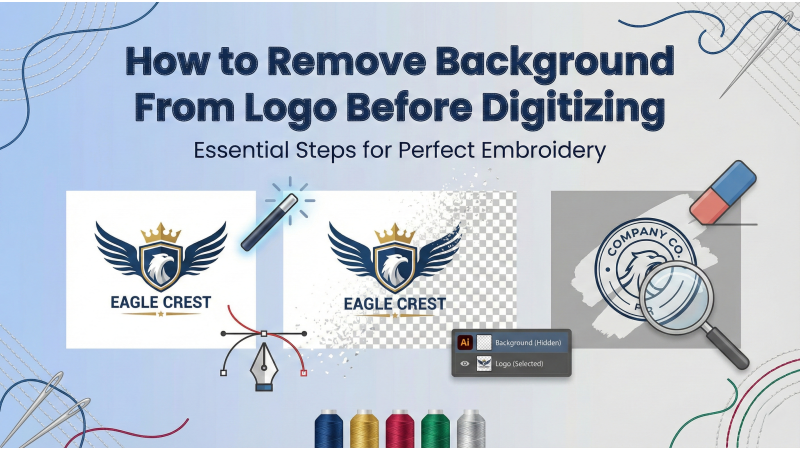
How to Remove Background From a Logo Before Digitizing
Removing the background from a logo is a critical pre-digitizing step that determines how cleanly your embroidery software interprets shapes, outlines, and color regions. Any leftover background — whether white, colored, textured, or gradient — can produce unnecessary stitches, create broken outlines, increase thread changes, or distort density. A properly cleaned logo ensures a smoother workflow in digitizing platforms such as Wilcom, Chroma, Hatch, Brother PE-Design, and Janome Digitizer. This extended guide explains background removal using Illustrator, Photoshop, AI-powered tools, and professional methods followed by top digitizers.
Modern design tools have evolved rapidly, and platforms like Adobe Creative Cloud make it easier to manage vector, raster, and hybrid artwork for embroidery. Whether you are starting from a JPEG or a layered vector file, removing the background correctly ensures the digitizer receives a clean, transparent artwork that translates into perfect stitches.
1. Use Illustrator’s Image Trace for Clean Vector Conversion
Adobe Illustrator remains one of the best tools for converting raster logos into vector artwork while eliminating background noise. The Image Trace panel offers detailed control over how a logo is converted. For deeper understanding of the panel settings, you can check the official Illustrator documentation on the Image Trace Panel Options.
To begin, place your JPEG/PNG logo onto the artboard, open the Image Trace panel, and choose the preset that best fits your logo. Complex logos with gradients or shading benefit from High Fidelity Photo, while simpler 2–6 color logos perform well with basic presets. The most essential setting in Image Trace is “Ignore White”, which automatically removes all white areas so you don’t have to erase them manually.
After adjusting the preview, click Expand to convert your image into editable vector paths. Ungroup everything and zoom in closely to delete any leftover background pieces hiding between objects. This cleanup step helps ensure the digitizing software reads only the shapes you intend to stitch.
For users completely new to Illustrator’s background-removal workflow, tutorials like this video guide — YouTube: Clean Logo Prep in Illustrator — help visualize real-world examples.
2. Manual Removal Using Magic Wand or Pen Tool
If your logo contains a solid background color, Illustrator’s Magic Wand Tool can remove it instantly. Lower the tolerance so it selects only the background shade, not parts of the logo. For textured, gradient, or multi-tone backgrounds, switch to the Pen Tool. Though it takes more time, the Pen Tool offers unmatched precision, and professional digitizers often prefer this method.
After outlining the logo with the Pen Tool, you can create a clipping mask or invert the selection to remove the background entirely. If you need to study advanced vector cleanup methods before digitizing, refer to Wilcom’s official guide on preparing vector artwork: Wilcom: Importing Vector Graphics.

3. AI-Powered Background Removal for Fast and Clean Results
AI has revolutionized background removal, allowing fast, automated cleanup with excellent accuracy. Tools like Remove.bg specialize in clean edge detection and transparent PNG exports. For more advanced controls and batch-processing options, Pixelbin.io provides a more powerful environment suitable for businesses and digitizers working with large logo sets.
While AI tools are incredibly efficient, always review the final output in Illustrator. AI sometimes leaves soft edges that do not translate well to satin stitching, especially around thin outlines or sharp corners. For embroidery, crisp edges equal cleaner stitch paths.
If you prefer video-based demonstrations, this tutorial is a helpful visual reference: YouTube: AI Logo Cleanup Walkthrough.
4. Detailed Background Removal Using Adobe Photoshop
Photoshop is ideal for raster logos requiring fine edge control. Tools like Quick Selection, Magic Wand, Select & Mask, and the Pen Tool allow precision removal with smooth edges. Using layer masks instead of deleting pixels provides flexibility and preserves original artwork.
Once cleaned, export the logo as a transparent PNG or PSD with an alpha channel. If your digitizing workflow requires vectors, bring the cleaned PNG into Illustrator or use Image Trace for conversion.
For detailed-edge corrections, tutorials such as YouTube: High Precision Logo Cutout give step-by-step demonstrations that help refine your skills.
5. Prepare the Clean Logo for Digitizing
After background removal, prepare the artwork for digitizing by ensuring clean edges, simplified shapes, and correct formatting. Before importing the file into your digitizing software, check for stray pixels, micro-artifacts, or overlapping shapes.
If the logo is still raster-based, convert it to vector for smoother stitch mapping. This avoids jagged satin borders or rough fill transitions. If your artwork involves detailed outlines or textured fills, Wilcom’s professional insights can help you optimize artwork before stitch conversion — see Eagle Digitizing: Logo Cleanup Essentials.
For more advanced users who want to experiment with additional Illustrator automation, this tutorial provides useful speed techniques: YouTube: Fast Logo Prep Workflow.
6. Testing the Clean Logo Before Digitizing
Import the cleaned logo into your digitizing software to ensure it displays correctly. Check for jagged edges, hidden background fragments, and pixel distortions. If something appears off, return to Photoshop or Illustrator and refine the file again.
If your workflow includes custom tracing or stylization, Illustrator advanced tracing tutorials like YouTube: Logo Tracing Masterclass and YouTube: Vector Cleanup for Embroidery are extremely beneficial before exporting final files.
Why Background Removal Is Essential for Embroidery
Digitizing software interprets every visible shape, pixel, and color — even unintended background noise. If background pixels remain, your embroidery machine may produce:
- Unwanted fill blocks
- Extra trims and color changes
- Stitch density overload
- Misaligned outlines
- Distorted lettering or borders
High-quality embroidery begins with clean artwork. Removing the background ensures the file is stitch-ready and prevents production errors on fabrics such as cotton, polyester, leather, fleece, caps, and performance wear.
Final Thoughts
Removing the background from a logo is not just a cosmetic correction — it is a crucial production requirement. Whether using Illustrator, Photoshop, or AI-powered tools, your goal is to deliver a clean, transparent, high-quality file that digitizing software can interpret without issues. With the combination of vector cleanup, AI automation, and manual refinements, your final stitched design will be sharper, cleaner, and far more professional.
Once you follow this workflow consistently, you’ll notice faster digitizing, fewer editing steps, smoother satin borders, perfect fill patterns, and overall better embroidery output on any machine.
Leave a comment