





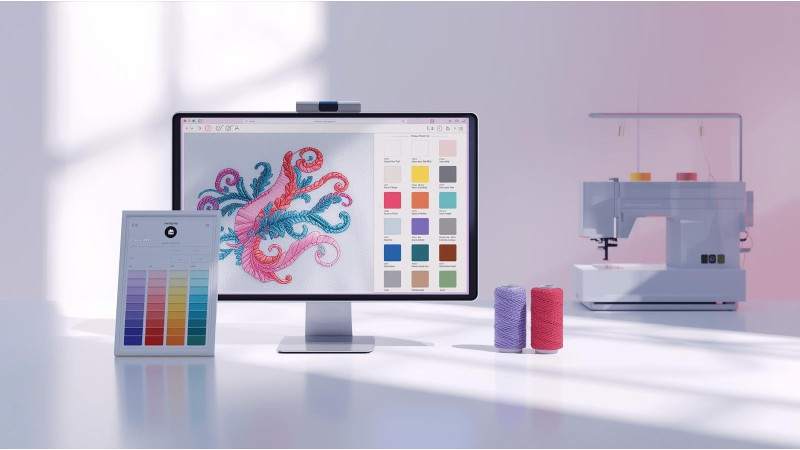
Why Your Embroidery File Has Missing Colors — Fixing Palette Issues
Missing or incorrect colors in embroidery designs is one of the most common issues faced by machine embroiderers. Whether your PES, DST, EXP, or JEF file shows unexpected shades, wrong thread numbers, or missing color blocks, the root cause usually lies in palette interpretation differences between software and machines.
This guide explains why color palette issues happen, how to correct them, and how to prevent them when downloading or digitizing new embroidery designs.
Why Embroidery Colors Go Missing or Change
Most embroidery machines and digitizing software use different color systems. When you open a design on a different platform, it may interpret colors differently, leading to mismatched shades or missing entries.
Here are some of the most common causes:
- Machine and software using different thread charts.
- File format limitations, especially with DST files that have minimal palette data.
- Incorrect color palette assigned during digitizing.
- PES and other formats exporting incorrect palette metadata.
- Software bugs in certain embroidery programs.
For example, users often report their machines showing different colors than expected. A detailed explanation can be found in this resource: Why does my embroidery machine display different colors?
Common Reasons for Missing Color Blocks
Missing colors often occur due to:
- Software incorrectly reading color-stop commands.
- Improper export settings from digitizing software.
- Color-change commands removed during editing or conversion.
- Machine automatically converting unknown colors to default shades.
A detailed breakdown on why colors may appear wrong can be seen at Why Are The Colors Wrong In My Machine Embroidery Design?
Fixing Color Palette Issues
1. Assign the correct color palette in your software
Most embroidery software lets you choose the thread chart. Always match it to your machine brand to avoid mismatched colors.
Learn more about palette configuration here: Configure Color Palettes for Embroidery
2. Re-export the design with correct settings
Sometimes the export process removes or alters color information. Export your file again using your machine’s recommended format.
A common issue occurs when exporting PES files. See this technical report: Issue with Colors on PES Export
3. Check for missing color stops
If your file is missing color stops, your machine may merge multiple colors into one. Reopen the file in editing software and verify the color-change commands.
4. Use specialized tools to reassign or correct colors
Software such as Embird, Wilcom, Hatch, or Embrilliance allows users to manually restore or adjust colors.
Useful tutorials include:
- Where Did My Color Changes Go?
- Why Are the Colors Wrong In My Machine Embroidery
- Recoloring in Wilcom EmbroideryStudio
- Colors of Embroidery Designs in Embrilliance
Preventing Color Loss in Future Embroidery Files
Here are the best practices for avoiding missing or wrong color issues:
- Always download embroidery files from reliable sources like EmbDesignTube.
- Use formats recommended for your machine brand.
- Avoid using old or outdated conversion tools.
- Check the palette settings before exporting the design.
- Test a preview in multiple viewers to confirm color accuracy.
Conclusion
Missing colors in embroidery files may seem complicated, but with the right steps, you can easily correct palette issues. Whether the problem comes from the file format, machine settings, or your digitizing software, following the solutions above will help you restore accurate colors and prevent future issues.
For high-quality designs with properly calibrated palettes, you can explore: EmbDesignTube.com
Leave a comment